DPI360, powered by Ezynect Technologies

Every counter. Every table. Every kitchen station.

Billing, a kitchen display for each station, printers, QR ordering, stock and staff — with live profit on top. Built for campus canteens and independent restaurants.

1–12kitchen counters per vendor
Offlinecash billing keeps going
OwnRazorpay account per vendor
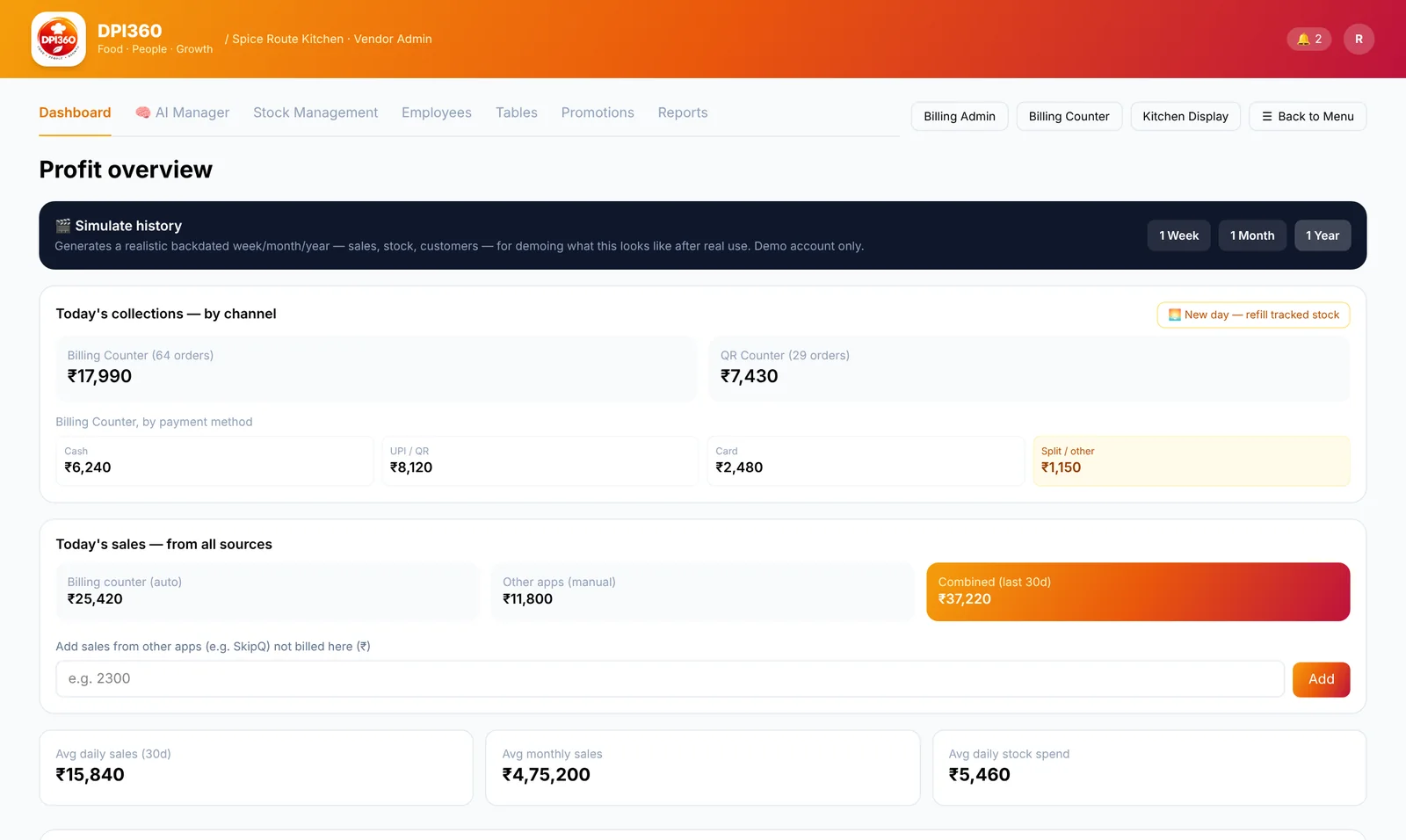
DPI360 profit dashboard
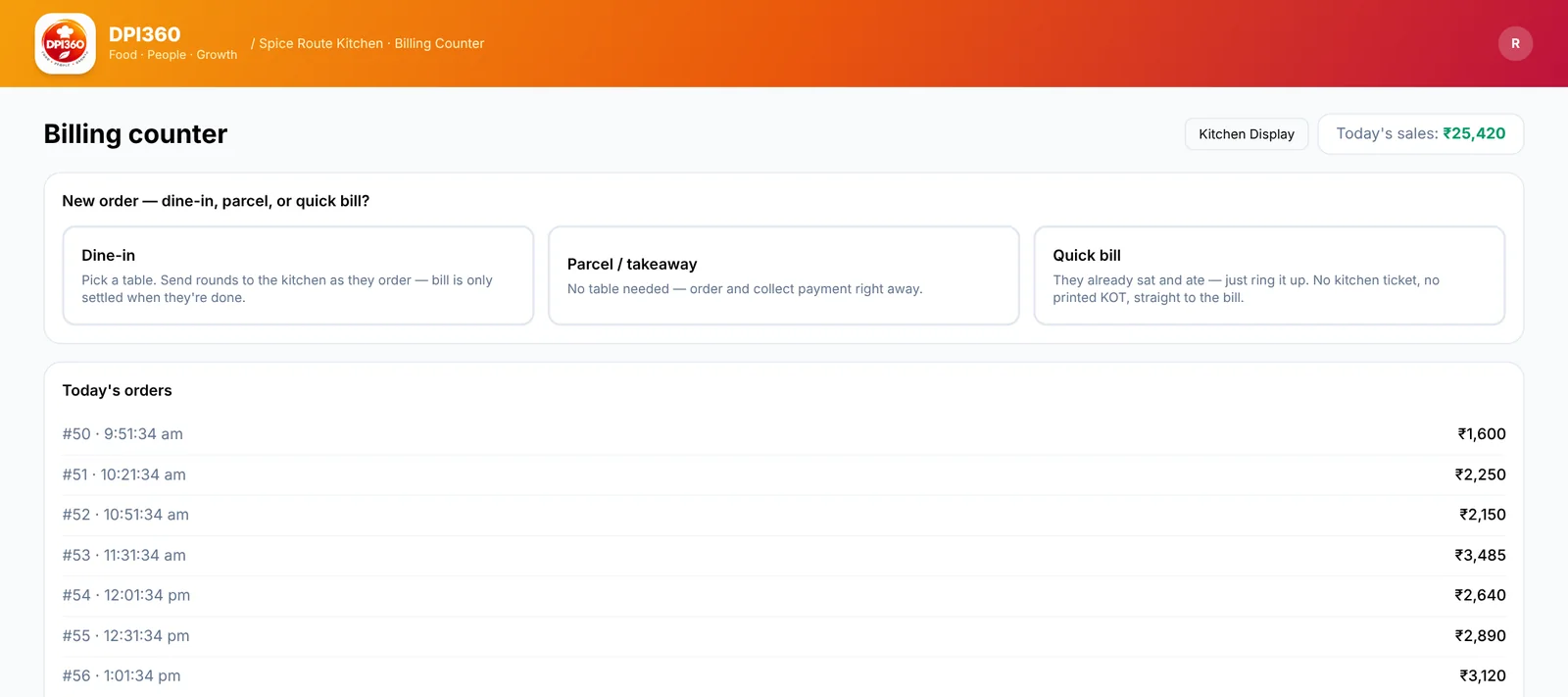
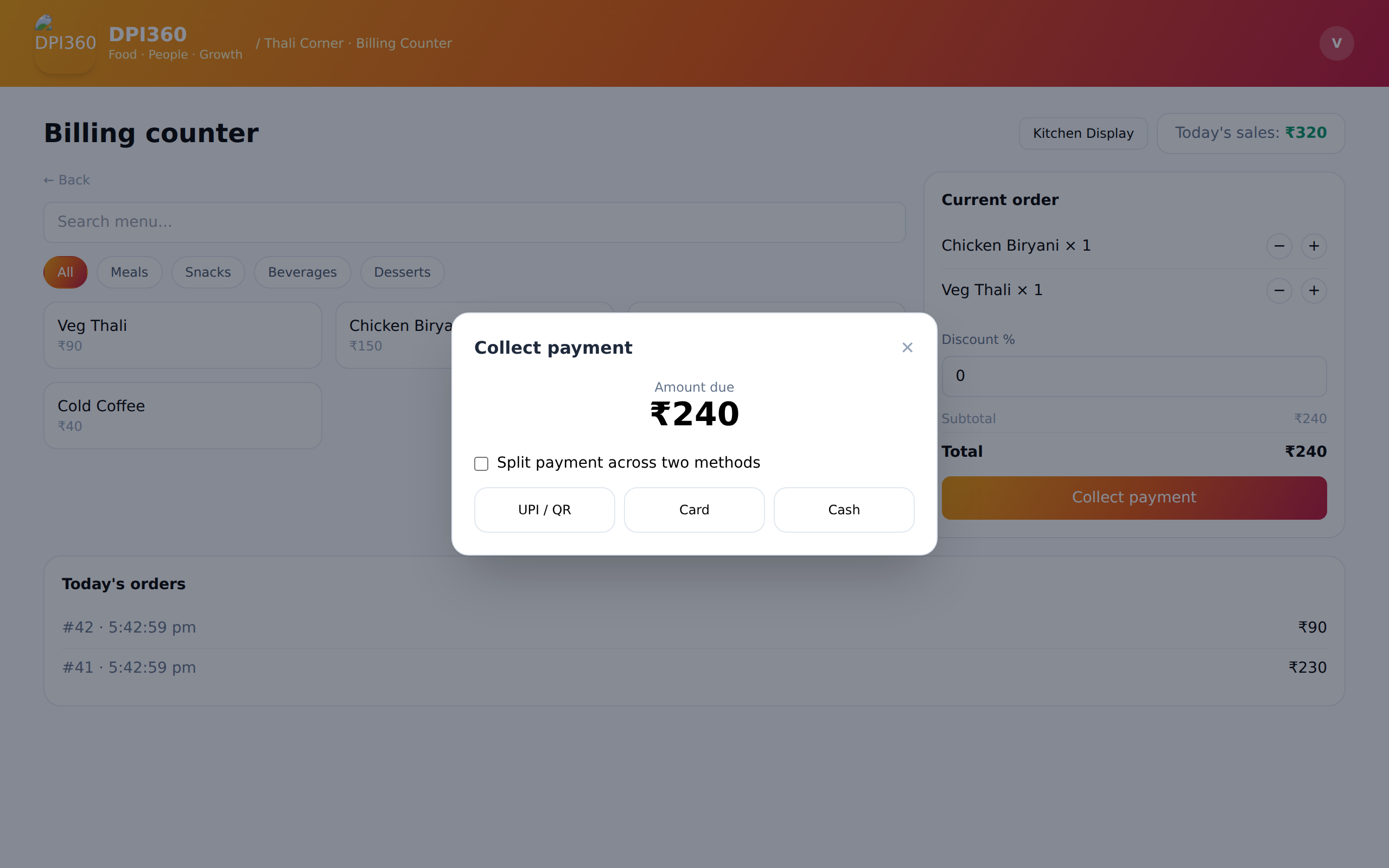
DPI360 billing counter
What's new

Everything a food business touches in a day, now with its own kitchen stations

These screens are the real application, shown with a sample restaurant's data.

Kitchen counters

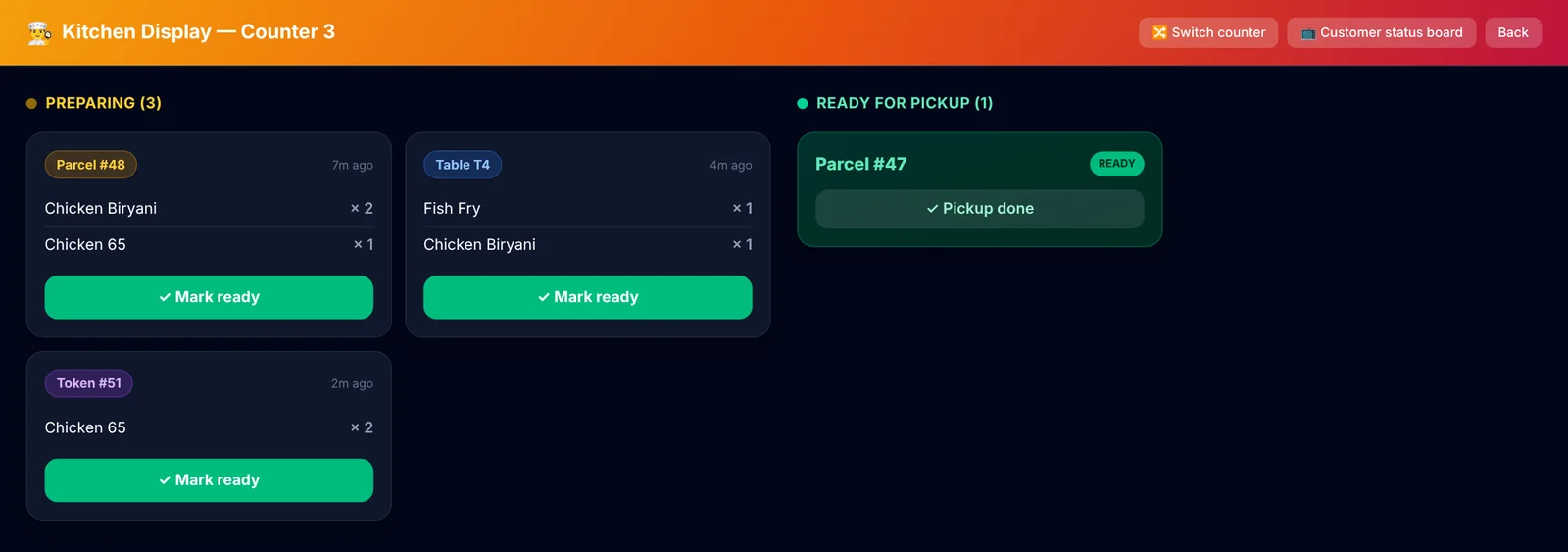
One order, split across your kitchen stations

Tiffin, meals, non-veg — each station only sees its own dishes. Set how many counters you run, assign every menu item to one, and the kitchen works from tickets that match the station.

  • Choose 1 to 12 kitchen counters from the Tables tab
  • Every menu item gets a counter from a dropdown
  • An order with items from three stations becomes three tickets
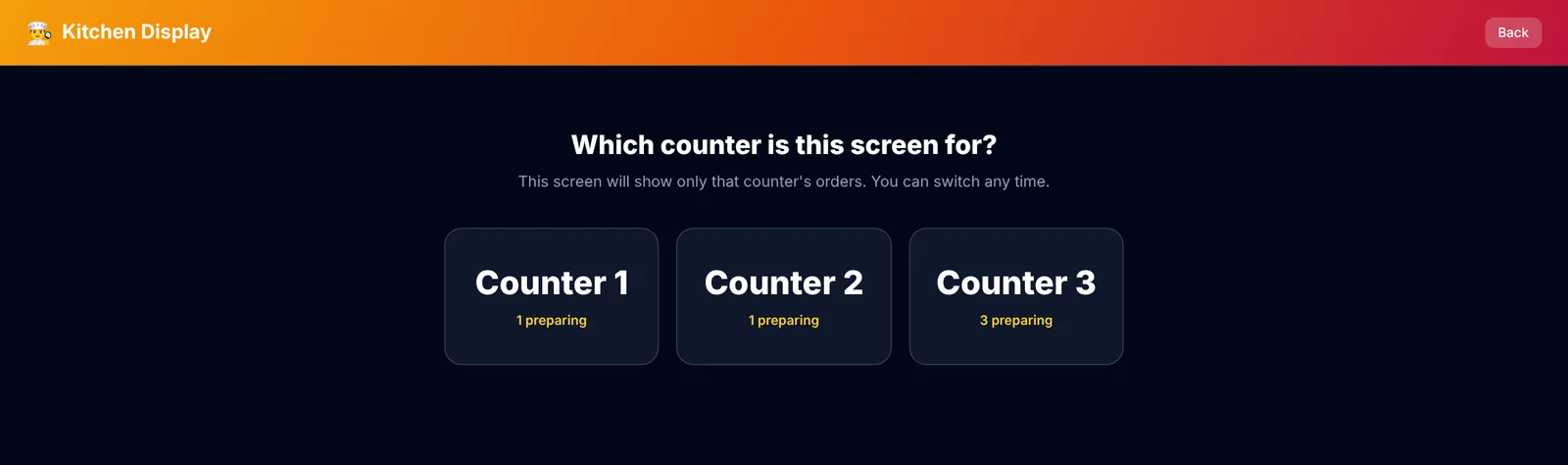
  • Each Kitchen Display asks which counter it is and remembers it after a refresh
Kitchen Display for counter 3
Kitchen Display counter picker
Printers

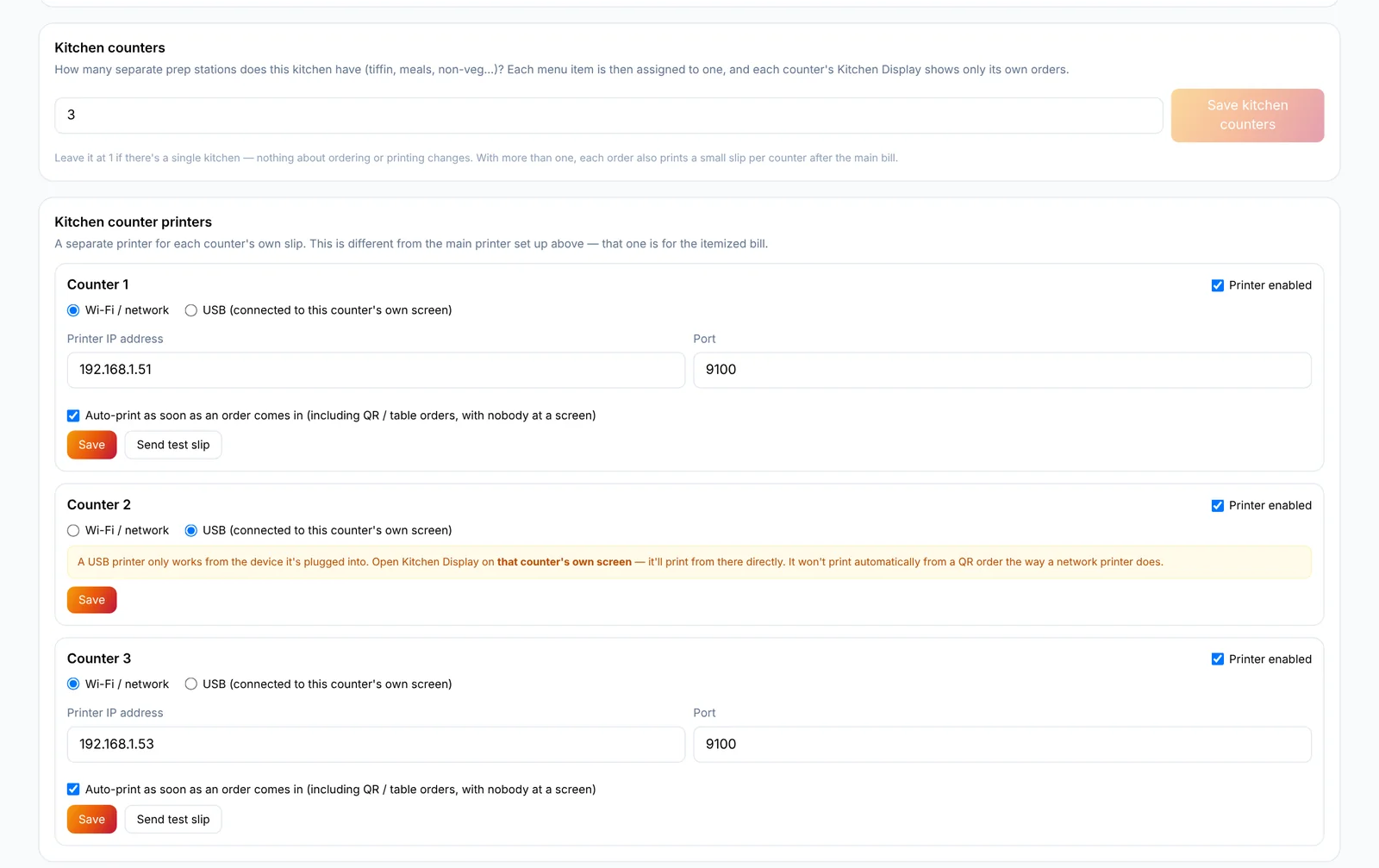
A main bill printer, plus one for each counter

Set up the main billing printer once, then give each kitchen counter its own. Wi-Fi printers print the moment an order lands — even from a customer's QR scan with nobody at a screen.

  • Wi-Fi / network printers: auto-print slips, with a test-slip button
  • USB printers: the counter's own Kitchen Display screen prints, since a cloud server can't reach a USB port
  • Counter slips follow the main bill; counters already auto-printed are never printed twice
Kitchen counter printer settings
Receipts

A compact bill, and a small slip for each station

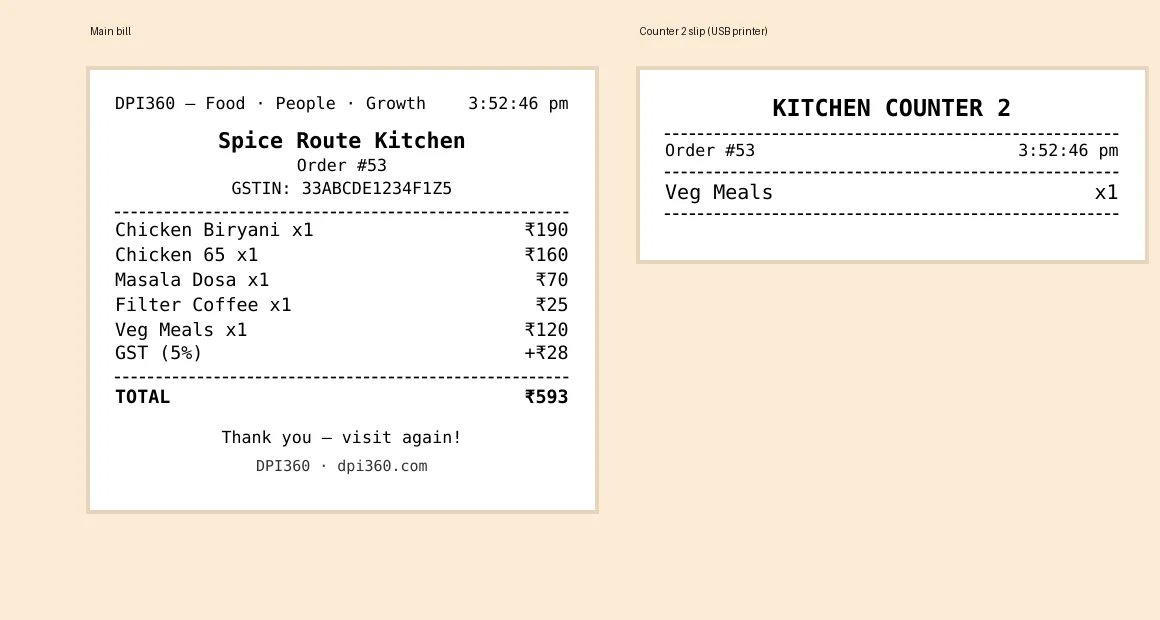
The customer's bill is one short 80 mm receipt. Each kitchen station that prints from the counter gets its own slip behind it, so the cook sees only what to make.

  • 80 mm receipt printing with GSTIN, GST and discount lines
  • Per-counter slips start on a fresh strip so they tear off cleanly
Printed receipt and counter slip
Billing counter

Dine-in, parcel, or a quick bill — one tap

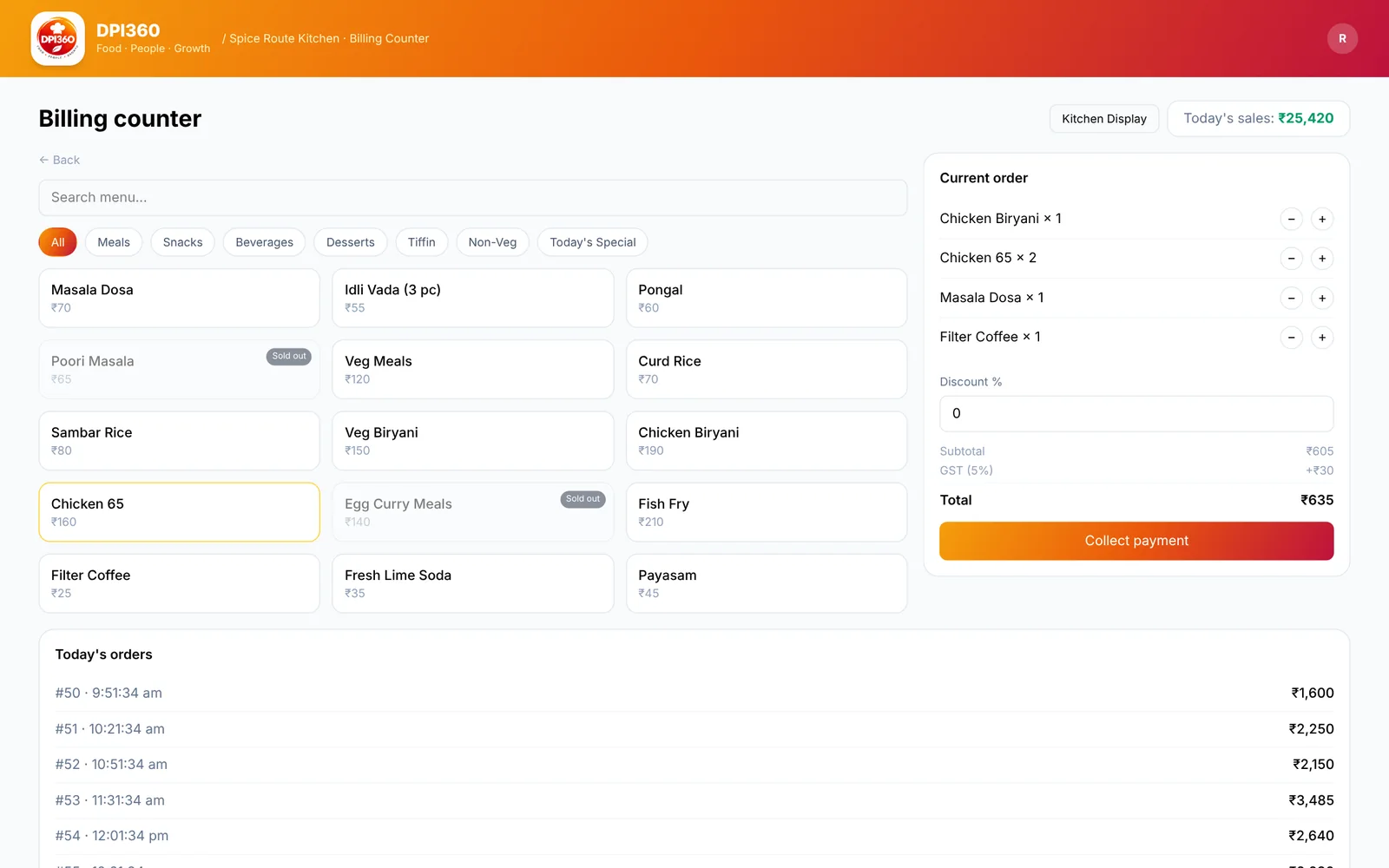
Pick how the customer is being served. Quick bill is for people who already ate: no kitchen ticket, straight to the bill. Categories are yours — Tiffin, Non-Veg, Today's Special — and they show up on the counter too.

  • Parcel and Quick bill with + / − on every line
  • Dine-in sends new items to the kitchen as guests order, settles only at the end
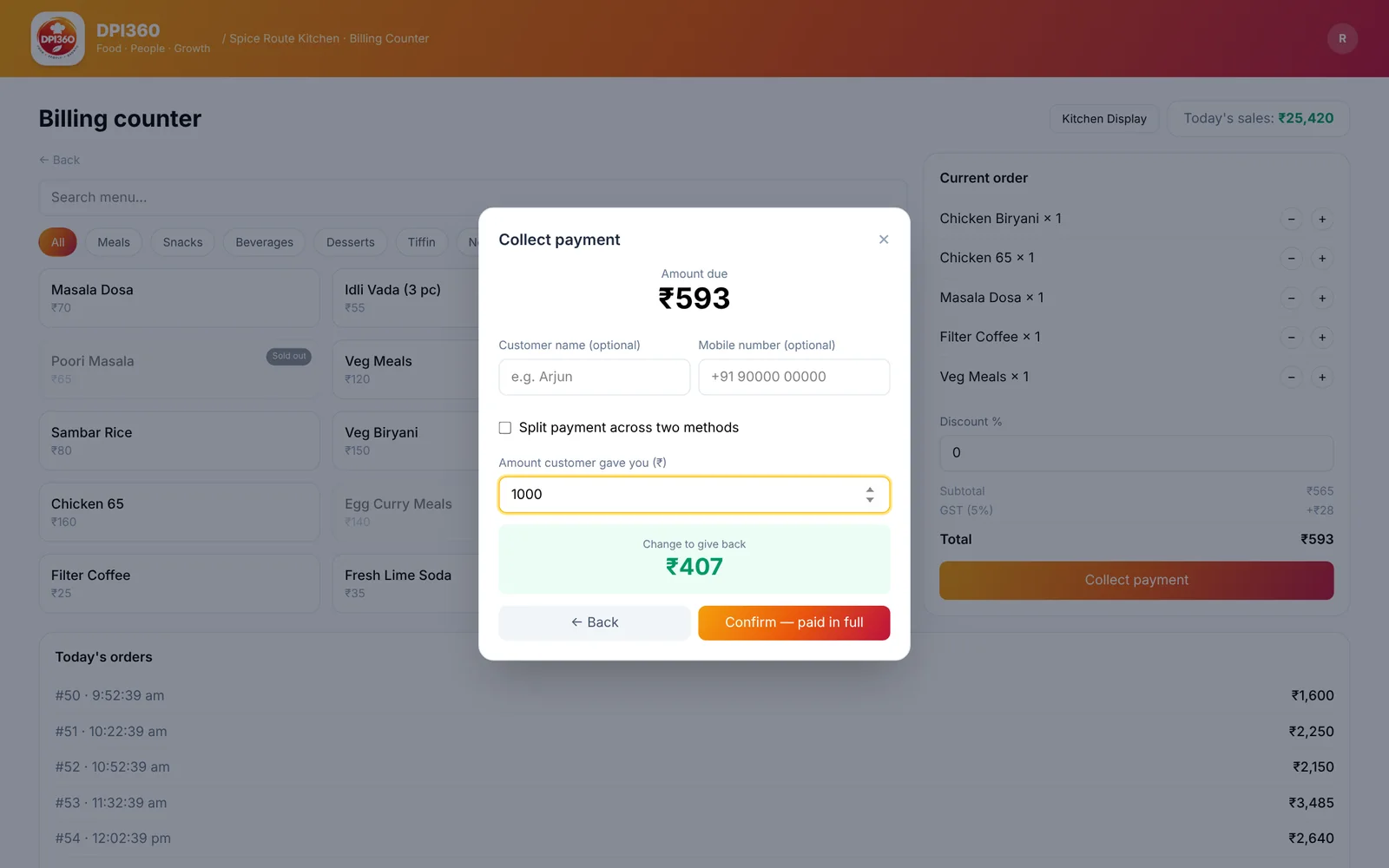
  • Cash change is worked out for you
Billing counter mode picker
Billing counter with an order in progress
Tables

Several groups at one table, each with their own bill

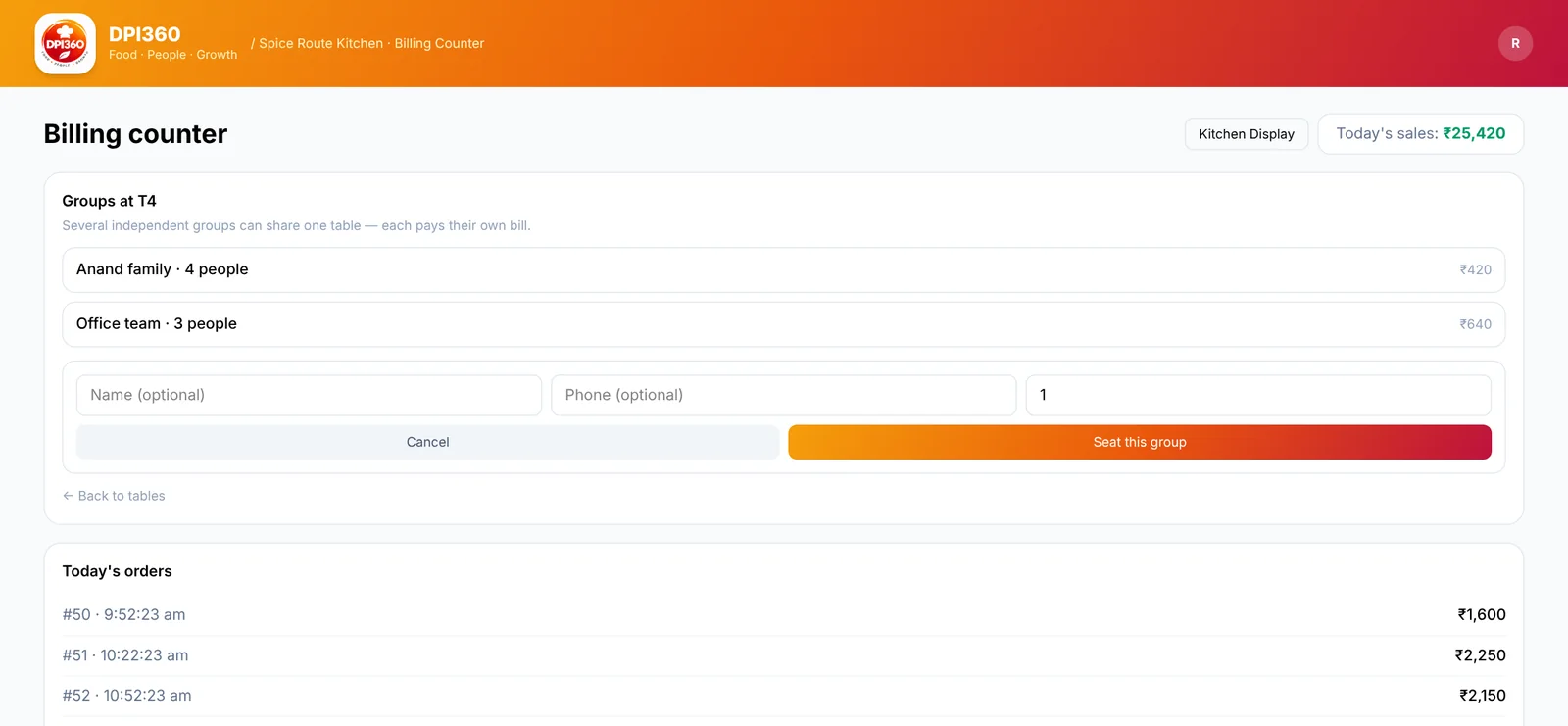
A four-seater can hold two parties. Seat each group with a name and seat count, add items to their own running bill, and settle them separately.

  • Seat counts per table, with occupied / free at a glance
  • Each group has an independent bill and checkout
Table with two seated groups
Payments

Change calculated, UPI and card when you want them

Type the note the customer handed over and see exactly what to give back. UPI and Card go through the vendor's own Razorpay account — money settles to their own bank, not to a shared pool.

  • Cash, UPI / QR, Card, or split across methods
  • Online options stay locked until Razorpay verification completes
Cash change calculator
Dashboard

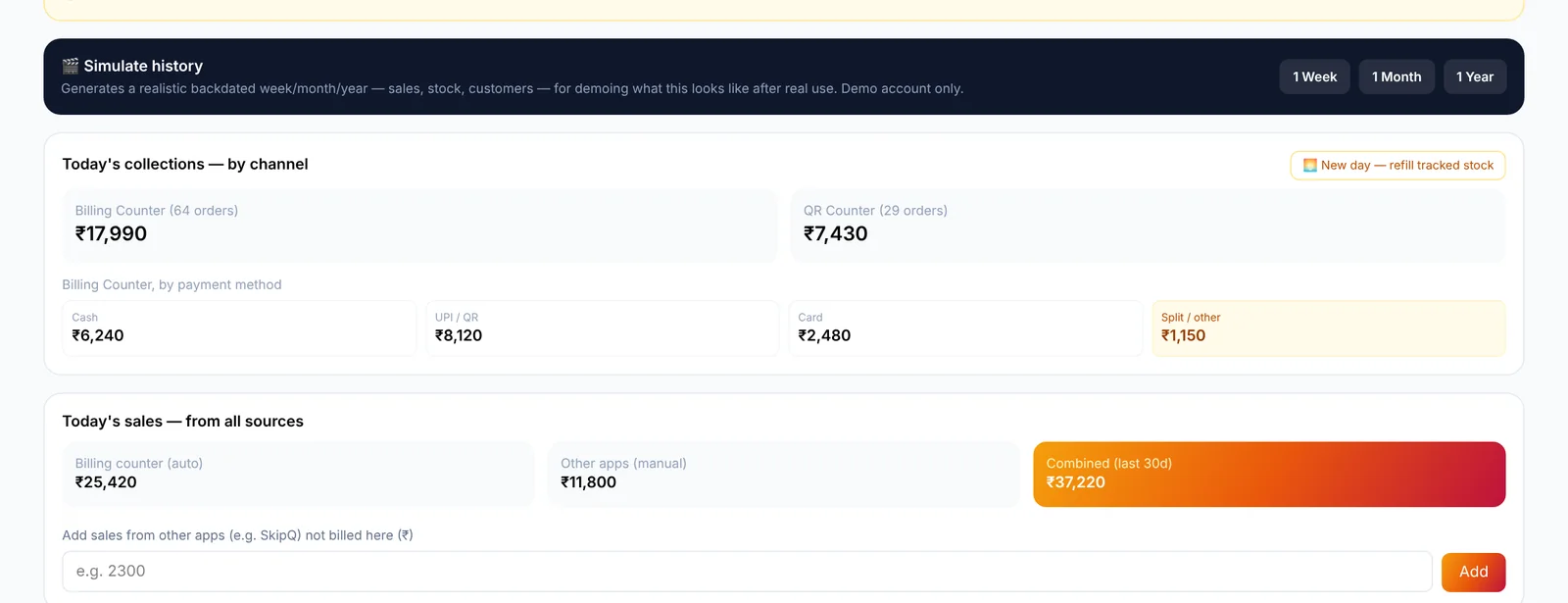
Today's money, by channel and by payment method

See what the staffed billing counter took versus what customers paid from their own phones, and break the counter down into Cash, UPI, Card and split payments. One tap starts a new day for tracked stock.

  • Billing Counter and QR Counter totals with order counts
  • Cash / UPI / Card / split breakdown
  • Profit and loss, sales vs spend and best sellers further down
  • Demo accounts get a Simulate button: a backdated week, month or year in one click
Today's collections by channel
Menu

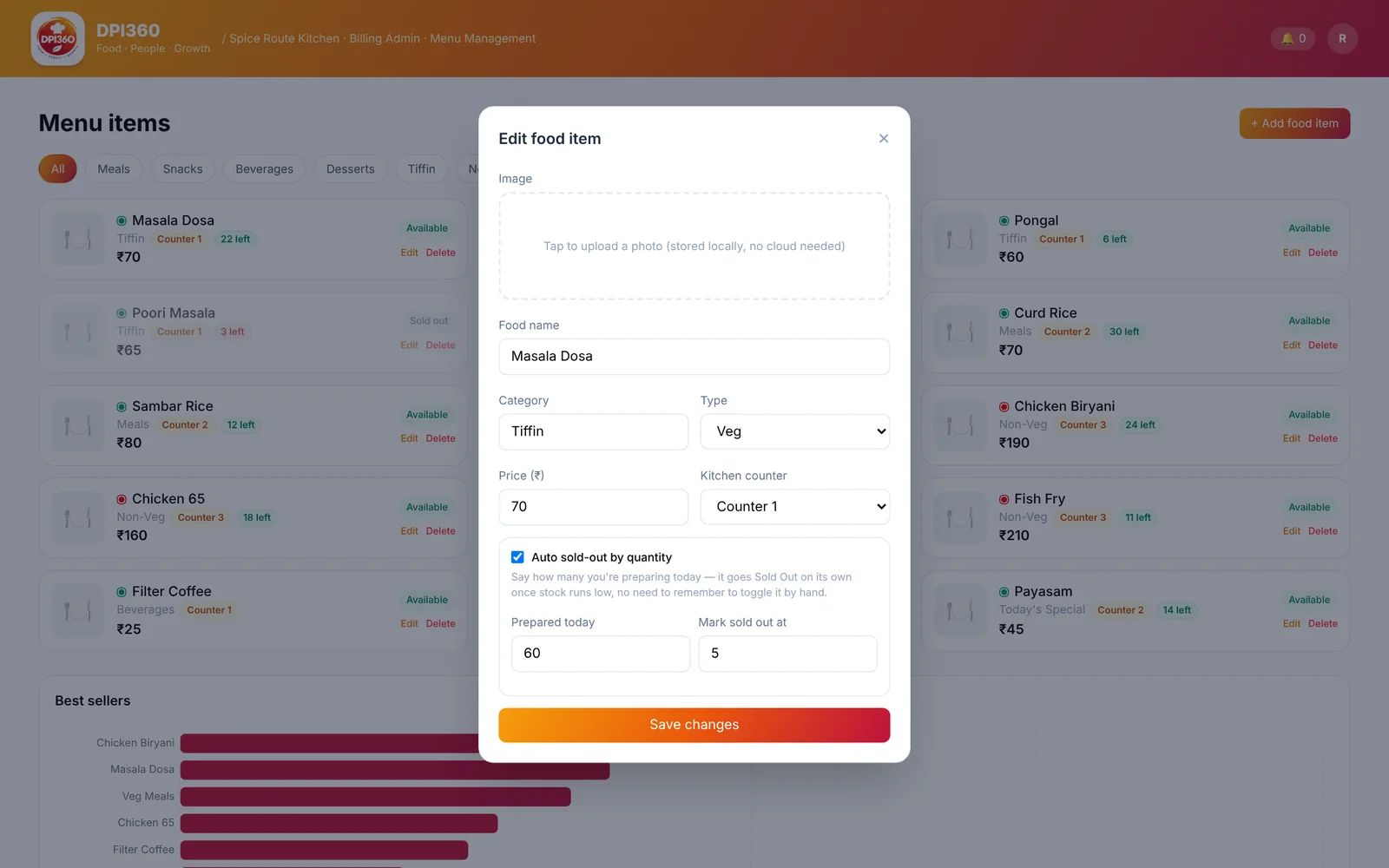
Items that mark themselves sold out

Tell DPI360 how many plates you prepared today. As orders come in, the count falls and the item switches itself to Sold out at the level you choose — no more finding out from an angry customer.

  • Prepared-today quantity and a sold-out level per item
  • "N left" badges on the menu, Sold out on the counter and QR menu
  • Edit price, category, photo or counter any time; create your own categories
  • A New day action refills the tracked items
Edit food item with auto sold-out
Customer QR

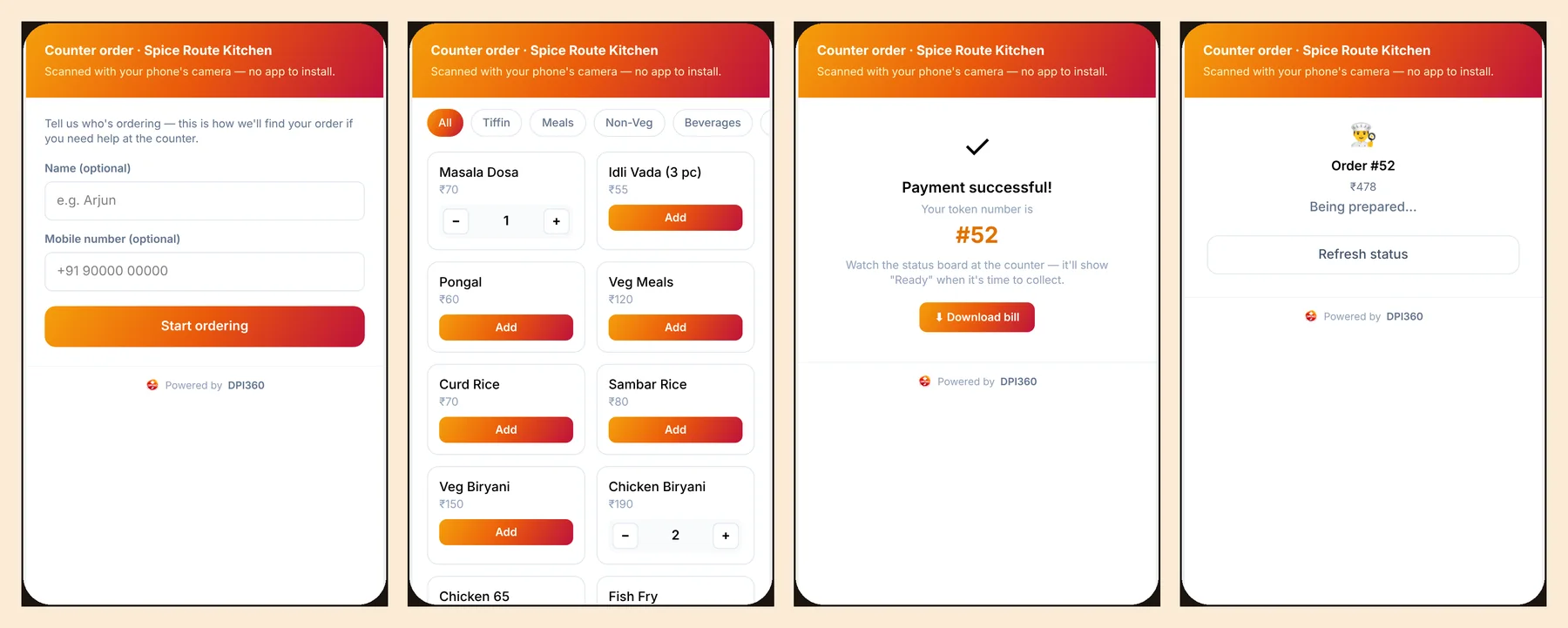
Scan, order, pay, download the bill

Customers scan a table or counter QR with the regular camera — no app. They enter a name and number once, order with + / − buttons, pay, and follow their order until it's ready. Refresh the page and they're still there.

  • Table and counter sessions survive a refresh until pickup
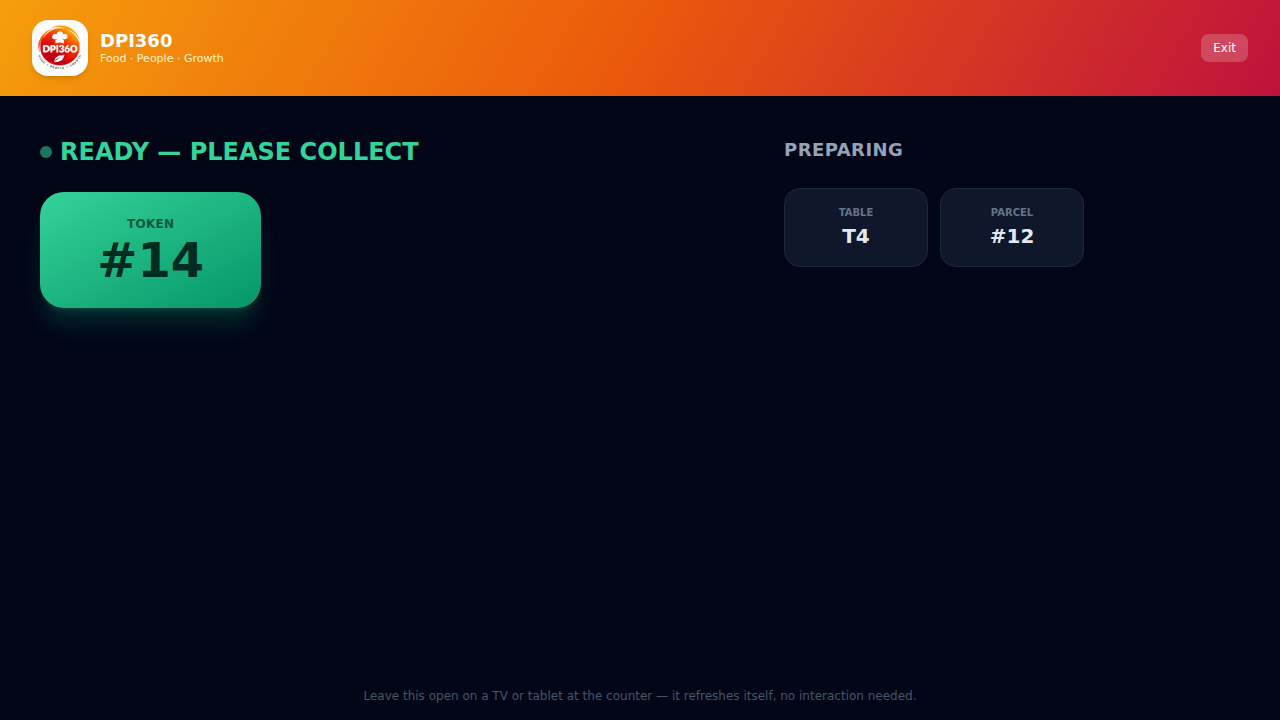
  • Live status: being prepared → ready for pickup
  • A Download bill button gives them a PDF receipt after paying
Customer ordering on their phone
Works offline

Net down for ten minutes? Keep billing

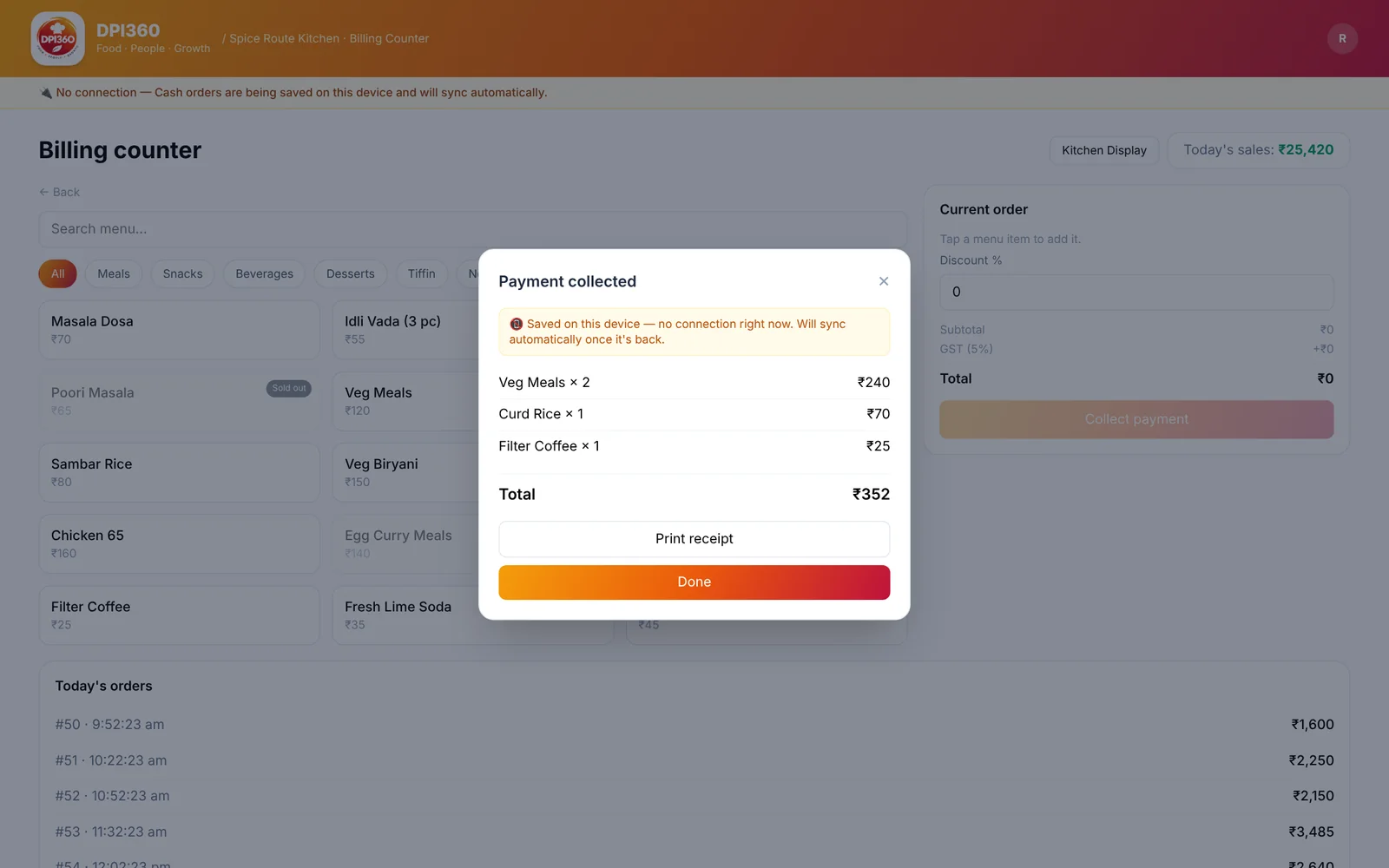
Cash orders are saved on the device and sent automatically when the connection returns. Online payments are disabled until then, so no one is charged without a record.

  • Saved-on-this-device banner and receipt
  • Orders sync in order; any the server rejects are reported, not silently dropped
  • Menu is cached on the device so the counter reloads offline
Billing counter offline
AI Manager

Suggestions computed from your own numbers

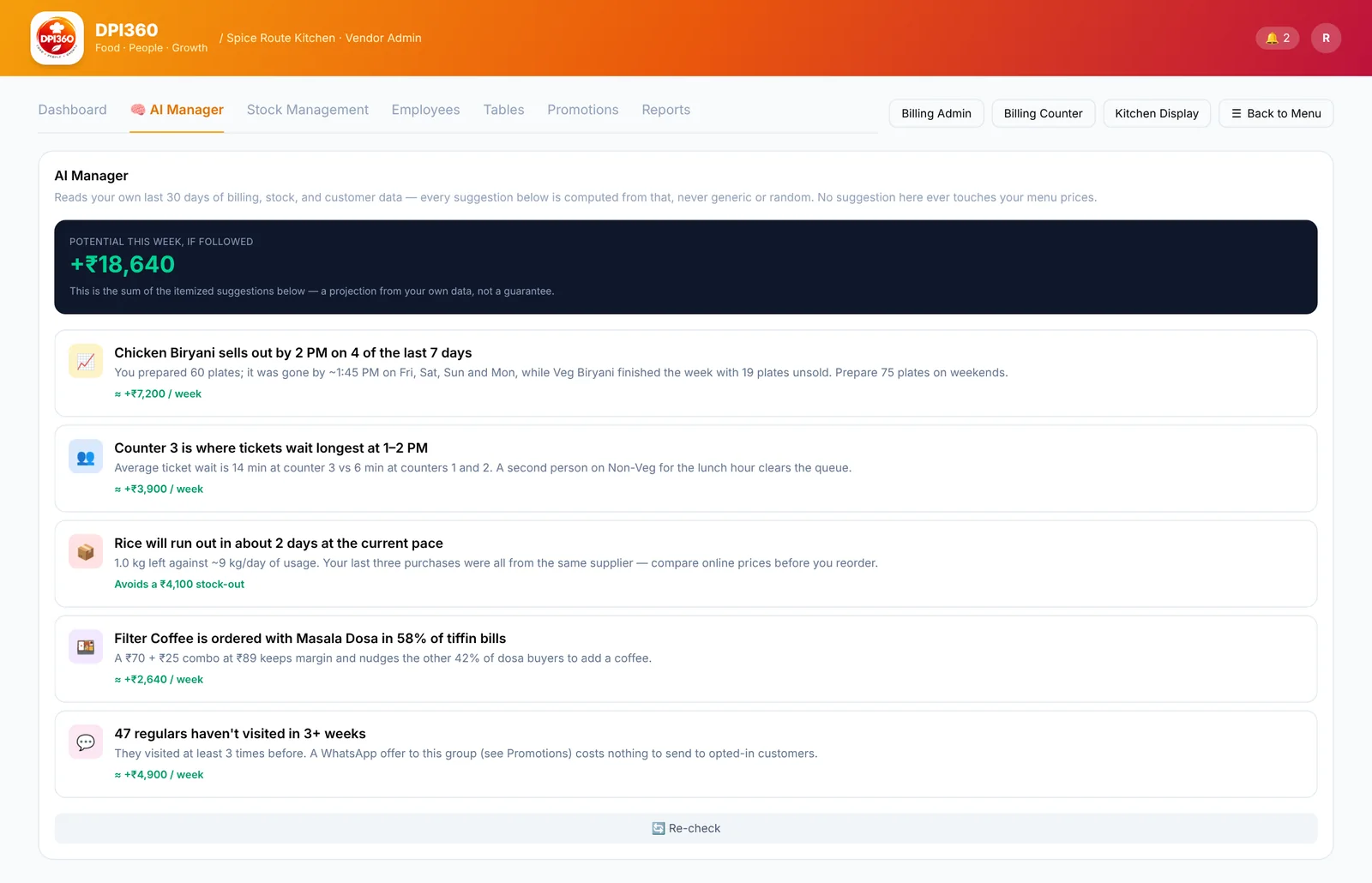
The AI Manager reads the last 30 days of billing, stock and customers and tells you what it found — what sells out early, where tickets wait, what's about to run out. It never changes your menu prices.

  • Every suggestion shows the evidence it is based on
  • A projected weekly impact, labelled as a projection, not a promise
  • Says so plainly when there isn't enough history yet
AI Manager suggestions
Stock

Photograph the bill, or just say what you used

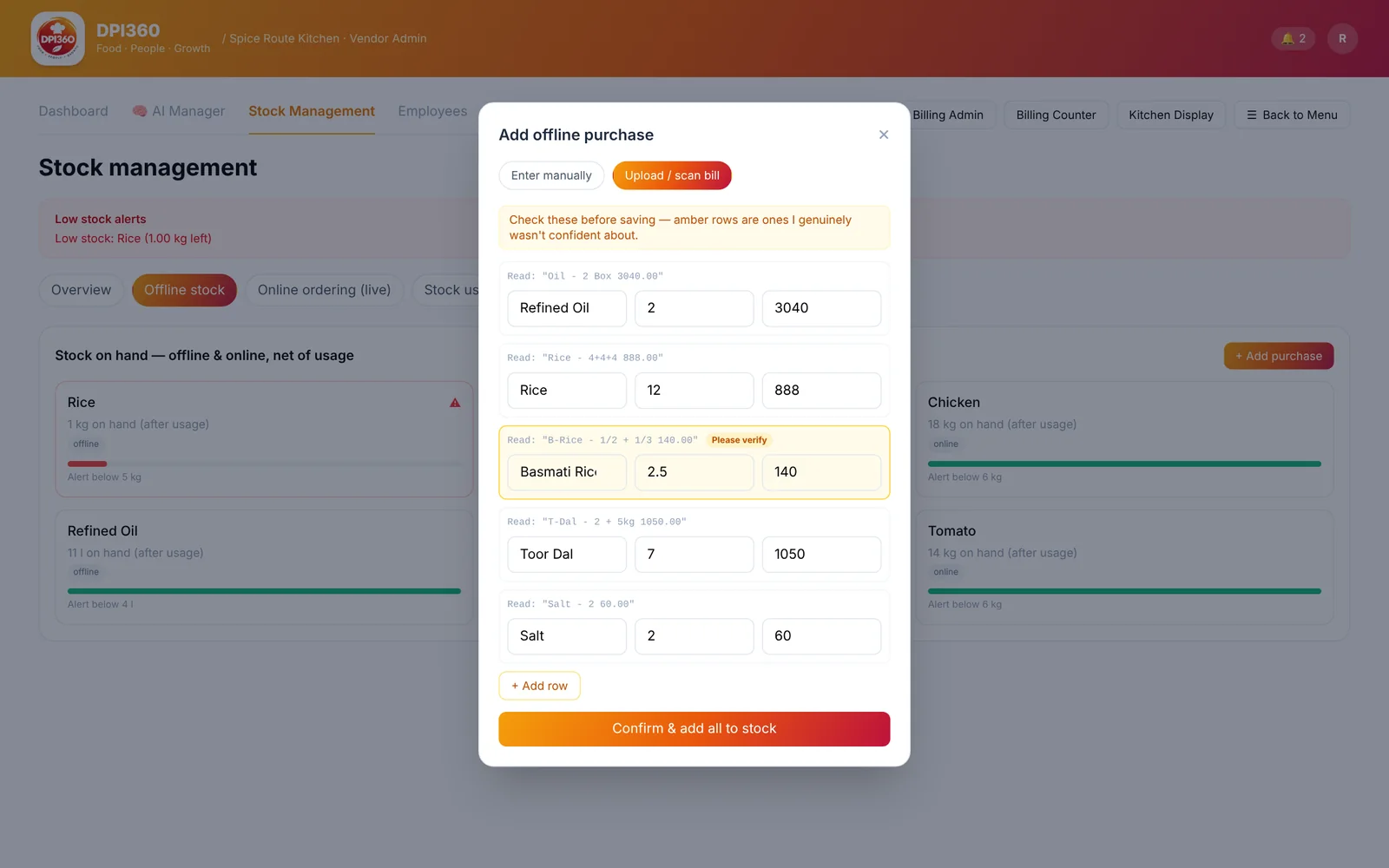
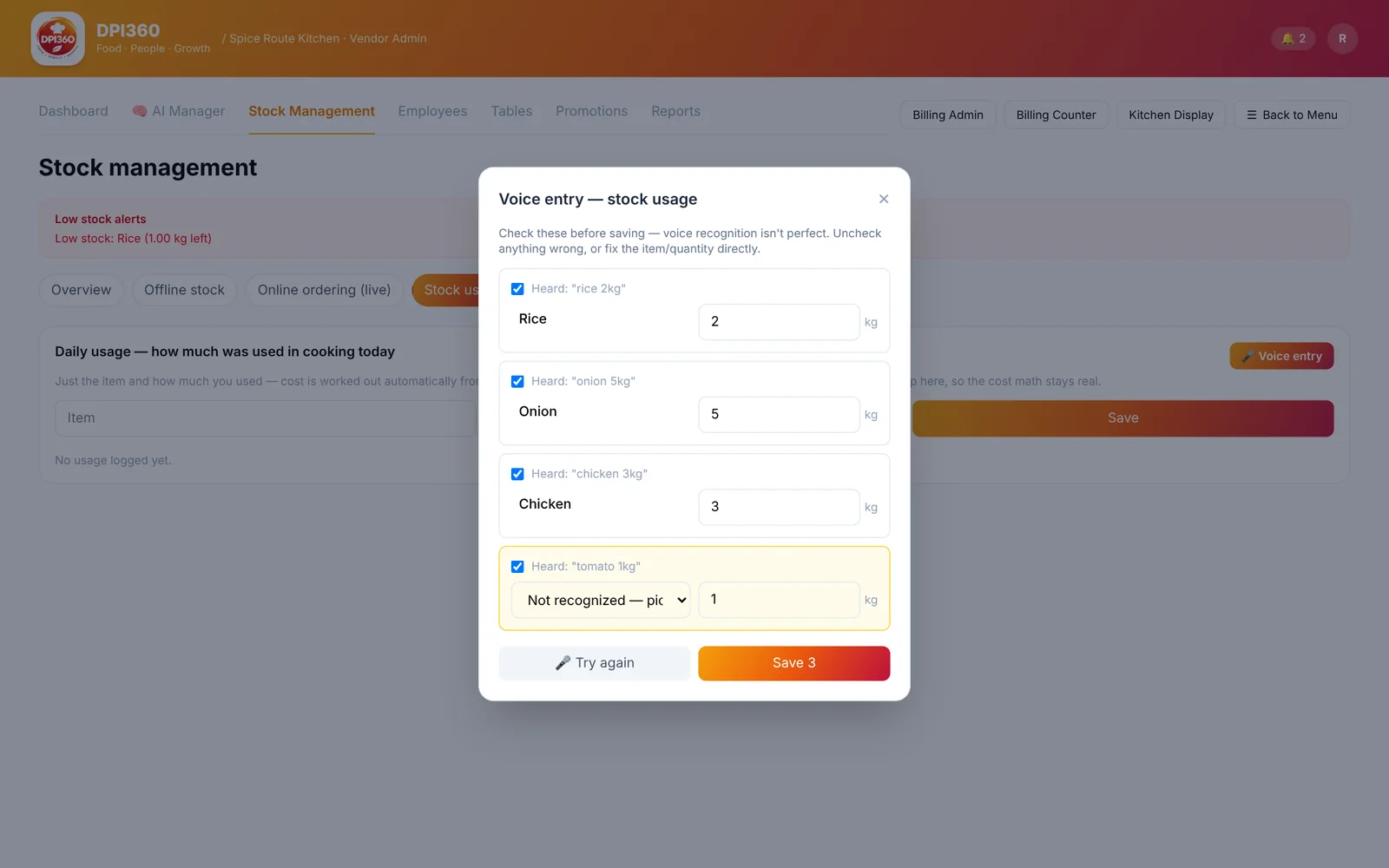
Upload a photo of a purchase bill and DPI360 reads the lines for you to confirm — anything it isn't sure about is highlighted. Log daily usage by voice instead of typing after a long shift.

  • Bill scan reads the photo on the server with no keys for you to set up
  • Uncertain rows are marked Please verify; handwriting is the hardest case
  • Voice entry matches what you say to your stock items and lets you fix any miss before saving
Bill photo scan results
Voice stock entry
Promotions

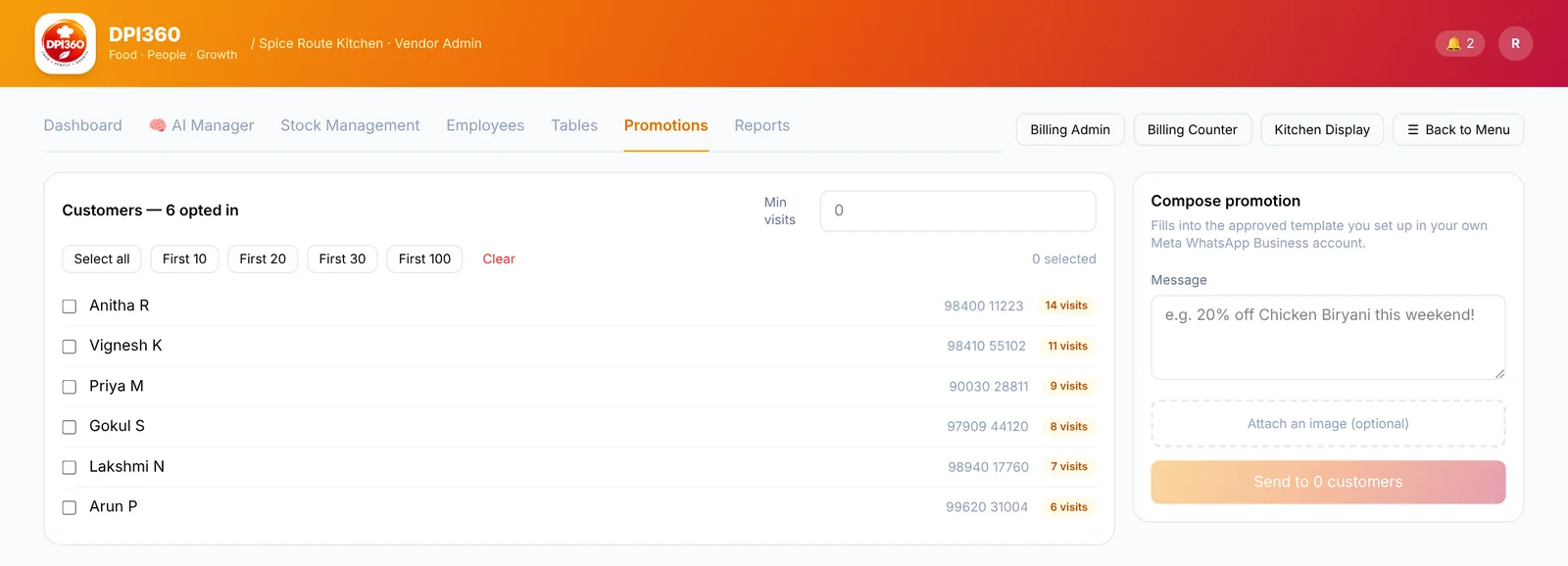
WhatsApp offers to customers who opted in

Pick customers by visit count, write the message, send. Uses the vendor's own Meta WhatsApp Cloud API account — no middleman and no platform fee from us.

  • Customers are captured at the counter, QR and table scans
  • Select the top 10, 20, 30 or 100 by visits
WhatsApp promotions
Onboarding

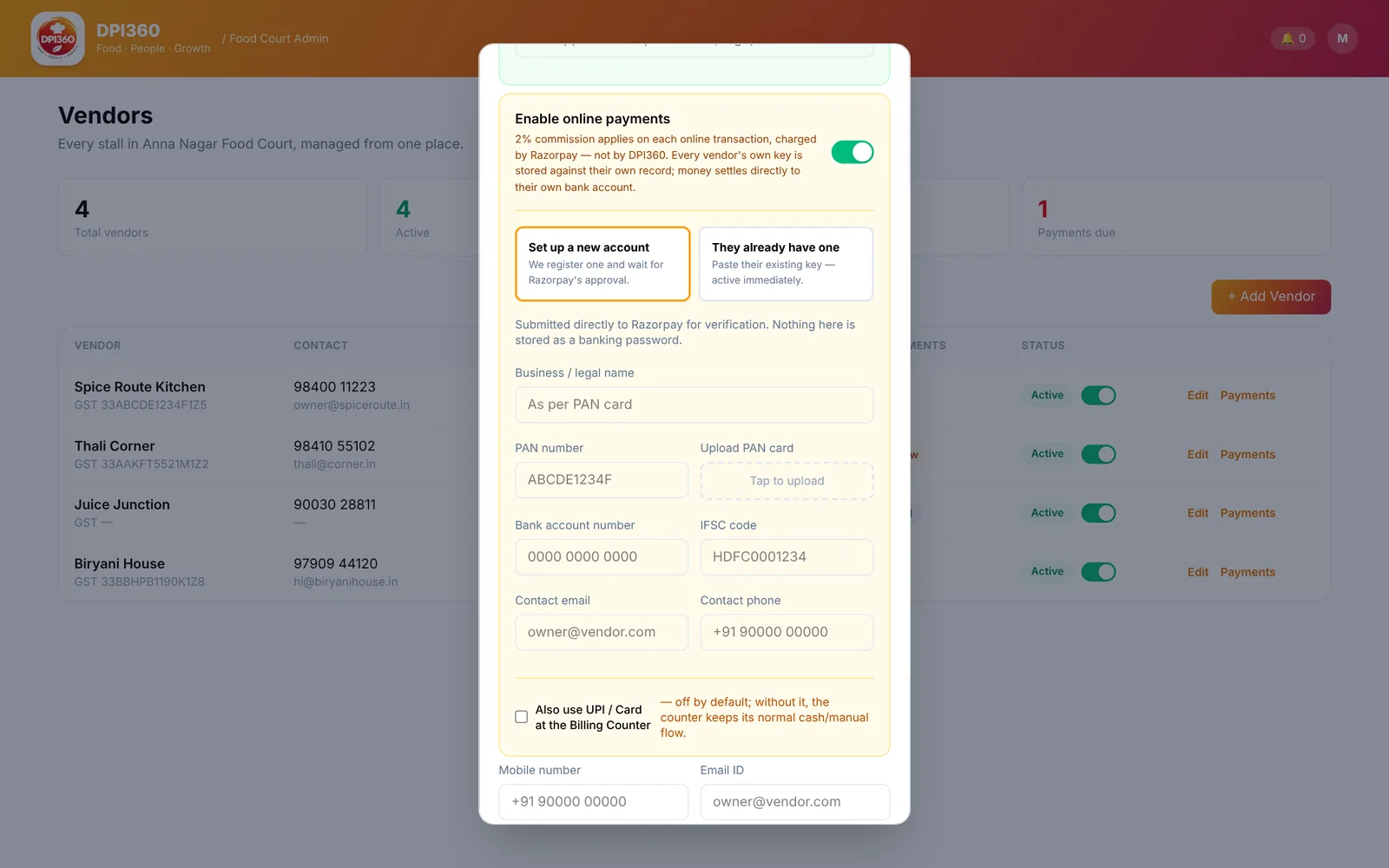
Add a vendor, with payments and demo data in one form

Food-court admins add each stall and choose how it takes online payments: register a new Razorpay account and wait for approval, or paste the vendor's existing key. Each vendor's key is stored against that vendor only.

  • Optional demo data: 55 stock items, 59 menu items and three kitchen counters
  • Optional WhatsApp promotions set-up
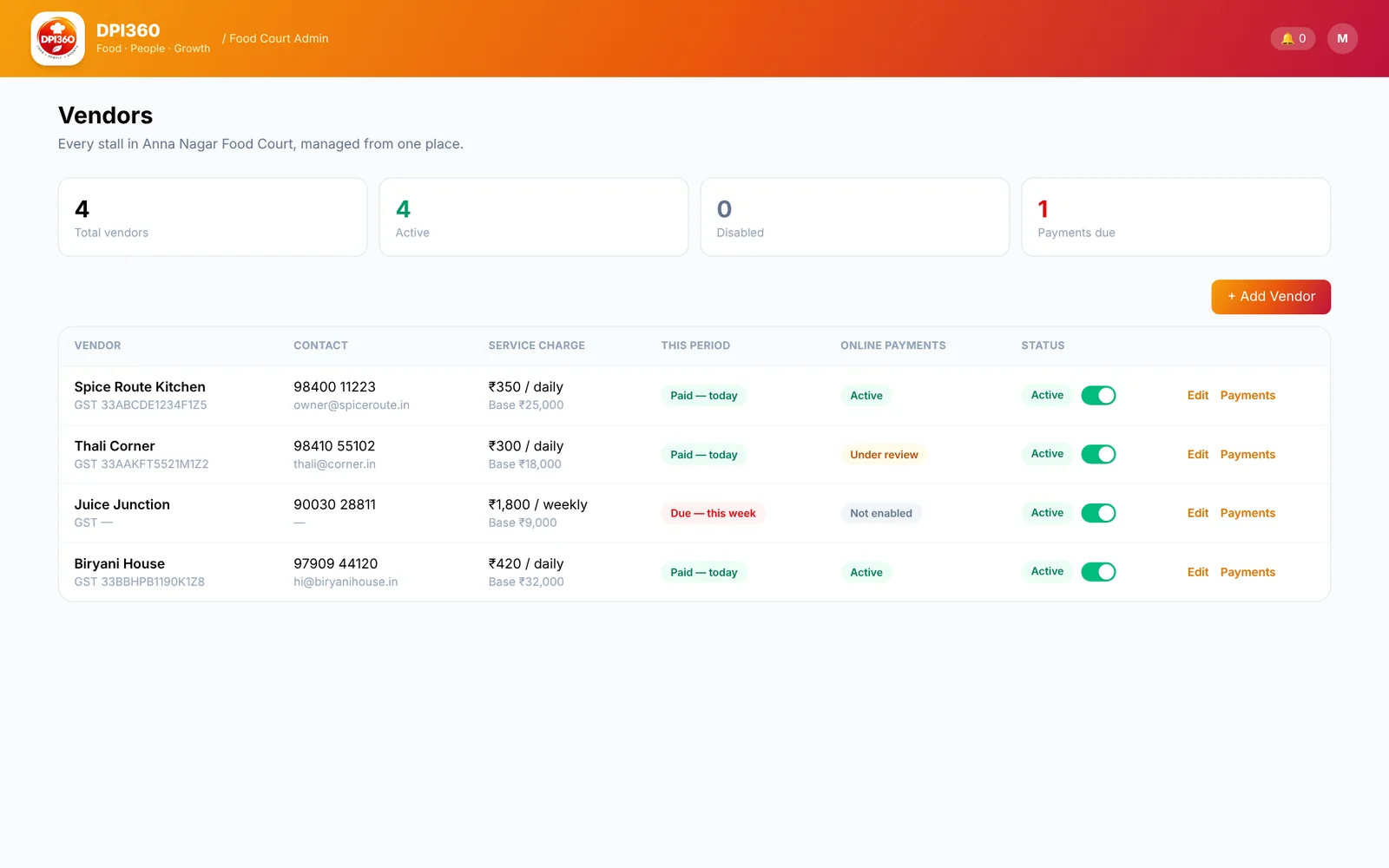
  • Service-charge status and payment status per vendor at a glance
Add vendor form
Vendors list
The full list

All of it, in one place

Billing

  • Dine-in, parcel, quick bill
  • Cash, UPI, card, split
  • Table groups and seat counts
  • Offline cash billing
  • GST and discount lines

Kitchen

  • Up to 12 kitchen counters
  • Tickets split per counter
  • Per-counter Kitchen Display
  • Customer status board
  • Auto sold-out by quantity

Printing

  • 80 mm compact receipt
  • Main bill printer
  • Per-counter Wi-Fi or USB printers
  • Auto-print for QR orders

Customers

  • Table and counter QR ordering
  • Order tracking
  • PDF bill download
  • WhatsApp promotions

Stock & people

  • Bill photo scan
  • Voice usage entry
  • Live online price comparison
  • Employees, attendance, leave

Insight & setup

  • Collections by channel
  • Profit and loss, any period
  • AI Manager
  • Razorpay per vendor
  • Demo data and Simulate
Why it pays off

More customers served, less money left on the table

A faster counter and a clearer number aren't nice-to-haves — they're the difference between a queue that walks away and one that comes back tomorrow.

Shorter queues

Scan-to-order takes orders off the counter entirely during rush hour, so you serve more people in the same lunch window instead of losing them to the line.

Fewer mistakes

Orders go straight from billing to the kitchen screen — nothing scribbled, nothing lost in translation, nothing sent back because someone misheard.

Real margins

Spend is calculated from what's actually consumed, not what's sitting in the storeroom — so a "profitable" day can't secretly be a losing one.

Repeat customers

Faster service and correct orders are the two biggest reasons someone comes back tomorrow instead of trying the next stall over.

Lower staff load

One login per role means a biller, a cook, and a stock manager each see only what they need — less training, fewer errors, faster onboarding.

Grows with you

Start with one campus counter, add a table-service restaurant later — the same platform handles both without switching tools.
Every screen

A look at the actual product

A few more of the real screens, as they run today.

Explore the live demo yourself →
Getting started

Live in an afternoon, not a quarter

1

We set up your org

Your food courts and vendors go in — campus counter or full restaurant, your call.

2

Add your menu

Items, prices, photos, and GST — five minutes per vendor, done once.

3

Hand out logins

Billers, cooks, and stock staff each get a login generated for exactly their role.

4

Start billing

First order goes through the same day — and shows up on the dashboard immediately.

See it running on your own menu

We'll walk you through it live, on your actual food items — takes about 20 minutes.

Book a demo
Book a demo

Tell us about your business

We'll reply within a day to set up a walkthrough — no sales deck, just your actual menu running on the actual product.

20-minute walkthrough on your own menu
Works for one counter or a whole campus
No commitment to book the call